

In the world of gaming, every millisecond counts. Picture this: you’re in an intense battle, your heart’s racing, and suddenly—lag! It’s like trying to run a marathon with a boulder tied to your back. If you want to leave that frustration behind and elevate your gaming experience, boosting your frames per second (FPS) is the golden ticket.
Understanding FPS and Its Importance
Frames per second (FPS) defines how many images a computer displays each second during gaming. It’s a critical metric that directly influences gameplay smoothness, responsiveness, and overall experience. Higher FPS leads to fluid motion and precise controls, essential for competitive gaming environments.
FPS plays a vital role in reducing lag. Lag negatively impacts reaction times, hindering performance in fast-paced games. Every frame displayed contributes to the real-time visual experience players rely on for success. An FPS rate below 30 can result in choppy graphics, increasing difficulty in executing strategies during gameplay.
Players often notice differences in FPS, especially when transitioning from lower rates to higher ones. Many experienced gamers prefer 60 FPS or higher for a responsive experience. Some competitive formats even prioritize frame rates above 144 FPS, utilizing advanced monitors to match.
Maintaining high FPS also aids in system efficiency. Resource management affects not only game performance but the computer’s overall health. Optimizing settings can lead to increased FPS while ensuring minimal strain on hardware, enabling prolonged gaming sessions without overheating.
Improving FPS becomes increasingly relevant as games evolve and graphics demand rises. Many newer titles require significant system resources, making high FPS paramount. Understanding FPS and its importance allows players to create strategies for adjustments that enhance their gaming experiences.
Check System Requirements
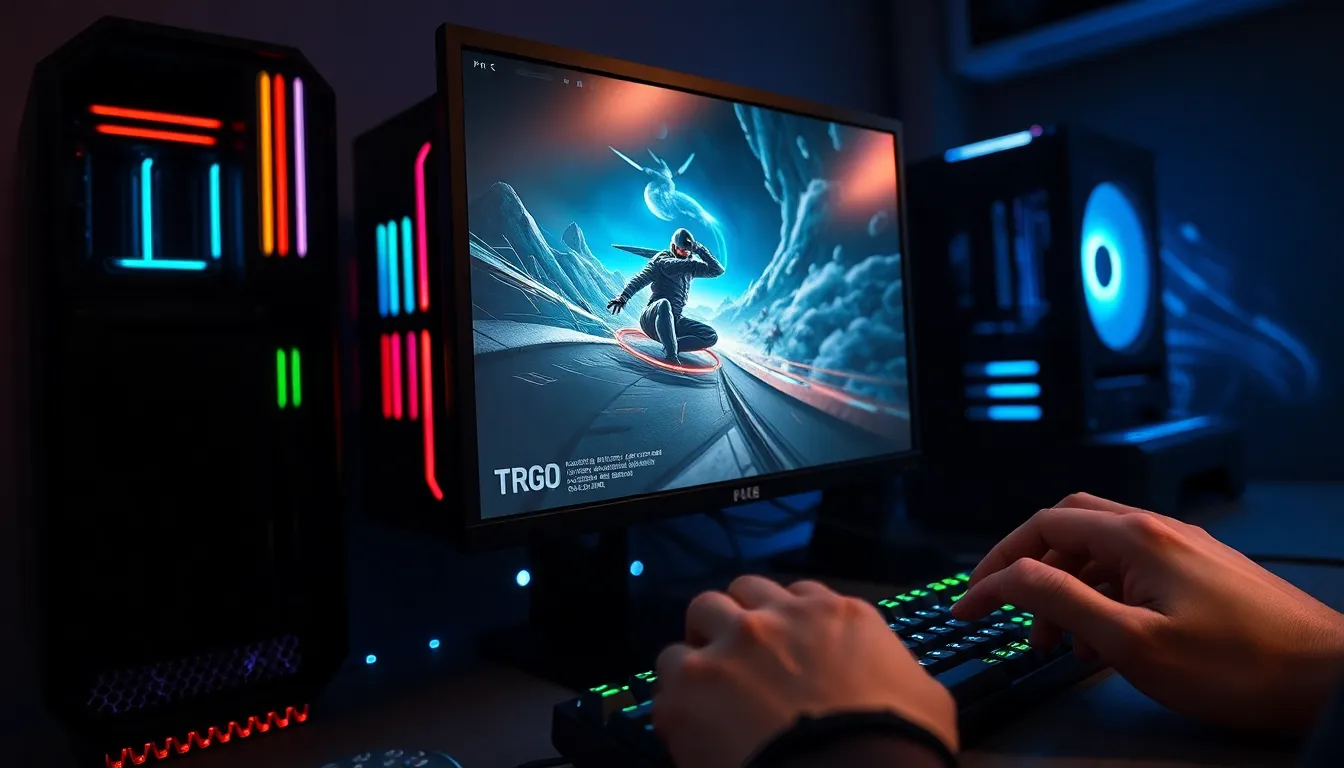
Understanding system requirements is crucial for optimizing FPS performance. Players must familiarize themselves with the specifications needed for their games.
Minimum vs Recommended
Minimum requirements serve as basic guidelines for running a game, but they may not deliver an optimal experience. Recommended requirements suggest hardware that enhances performance significantly. Players targeting smooth gameplay should aim for systems that meet or exceed recommended specifications. For instance, a game might list a minimum requirement of 8 GB RAM and a GTX 1050 graphics card, while the recommended might specify 16 GB RAM and a GTX 1060. Choosing components exceeding the minimum can prevent lag and ensure better FPS during intense scenes.
Analyzing Your Current Hardware
Analyzing current hardware reveals if it meets game demands. Begin by checking specifications for the processor, RAM, and graphics card. Tools like CPU-Z and GPU-Z assist in gathering this data. Comparing these specs against game requirements aids in identifying potential bottlenecks. For example, a powerful GPU may struggle if paired with an outdated processor. Upgrading outdated components leads to better performance, allowing for higher FPS in demanding titles. Identifying and addressing these gaps optimizes overall gaming experiences significantly.
Optimize In-Game Settings
Optimizing in-game settings significantly enhances FPS. These adjustments can profoundly impact performance and create a smoother gaming experience.
Graphics Settings Adjustments
Reducing shadow quality and turning off anti-aliasing can boost frame rates. Disabling motion blur and lowering texture quality also play essential roles. Gamers should experiment with graphics settings to find a balance between aesthetics and performance. Each game provides unique settings, so assessing available options helps pinpoint what works best. Settings often labeled as ‘high’, ‘medium’, or ‘low’ indicate visual quality and performance trade-offs. Selecting ‘medium’ or ‘low’ settings can dramatically enhance FPS without sacrificing too much visual detail.
Resolution and Refresh Rate
Resolution directly affects FPS, with lower resolutions typically providing higher frame rates. Adjusting the game’s resolution to 1920×1080 or lower can yield noticeable improvements in performance. Additionally, increasing the refresh rate of monitors sets a higher standard for smooth gameplay. Competitive gamers often prefer 144 Hz or more to maximize responsiveness. Balancing resolution and refresh rate effectively helps maintain buttery smooth visuals. Adjusting these settings based on hardware capabilities can lead to optimal results, ensuring an immersive gaming experience.
Update Drivers and Software
Updating drivers and software is crucial for maximizing FPS. Regular updates can significantly boost gaming performance.
GPU Drivers
GPU drivers directly affect how graphics are rendered. Keeping these drivers updated ensures compatibility with the latest games and optimizations. Manufacturers such as NVIDIA and AMD release updates frequently, often enhancing performance and fixing bugs. Newer drivers can unlock additional features, increase FPS, and improve game stability. Using tools like GeForce Experience or Radeon Software simplifies the update process, automating installation for better ease. Neglecting driver updates can result in decreased performance and lag during gameplay.
System Updates
System updates improve overall performance and security. Operating systems receive updates to fix vulnerabilities and optimize resource management. Windows users should enable automatic updates to ensure they receive these enhancements timely. Regular updates streamline background processes, which enhances FPS by freeing up system resources. Additionally, updating software relevant to gaming, like DirectX and Visual C++, often leads to better compatibility and performance. This ensures that the computer runs efficiently, contributing to an elevated gaming experience.
Manage Background Processes
Managing background processes significantly boosts FPS during gaming sessions. By optimizing system resources, players can enhance their overall experience and reduce lag.
Disabling Unnecessary Applications
Disabling unnecessary applications frees up system resources, allowing the CPU and RAM to focus on gaming tasks. Identifying resource-heavy programs, such as file sync services or web browsers, helps in improving performance. Players can access Task Manager (Ctrl + Shift + Esc) to view running applications. After pinpointing high-resource offenders, right-clicking and selecting “End task” stops them immediately. This straightforward approach minimizes the load on the system and increases available FPS during gameplay.
Optimizing Startup Programs
Optimizing startup programs prevents unwanted applications from launching at boot, which often drains resources. Entering Task Manager and navigating to the Startup tab reveals all programs set to launch on startup. Players can disable non-essential programs by right-clicking and choosing “Disable.” This adjustment provides a quicker startup process while reserving more resources for gaming. Reducing the number of startup applications directly influences FPS, ensuring a smoother gaming experience from the moment the system powers on.
Hardware Upgrades
Hardware upgrades significantly enhance FPS and overall gaming performance. Players often find that updating components leads to smoother gameplay.
Adding More RAM
Adding more RAM increases the system’s ability to handle multiple tasks simultaneously. Players experiencing low FPS during intense gaming sessions typically benefit from a RAM upgrade. Doubling the RAM from 8 GB to 16 GB improves performance, especially in resource-heavy games. Many modern titles require at least 16 GB for optimal operation. Systems running on lower RAM may struggle with loading times and frame drops. Thus, upgrading to higher capacity RAM enhances multitasking without compromising FPS.
Upgrading the GPU
Upgrading the GPU significantly impacts gaming graphics and performance. A modern graphics card delivers better rendering techniques and higher FPS in demanding games. Users with outdated GPUs often struggle to achieve 60 FPS, whereas newer models easily push beyond 144 FPS. Selecting a GPU that matches the gaming resolution further maximizes performance. For example, a graphics card like the NVIDIA GeForce RTX 3060 offers excellent performance for 1080p and even 1440p gaming. Enhancing the GPU not only boosts frame rates but also improves game visuals, leading to a more immersive experience.
Achieving higher FPS on a PC is essential for an optimal gaming experience. By understanding system requirements and analyzing hardware, players can identify areas for improvement. Optimizing in-game settings and managing background processes further enhances performance.
Regularly updating drivers and software ensures compatibility and boosts FPS significantly. For those looking for a more permanent solution, hardware upgrades like increasing RAM or investing in a modern GPU can make a world of difference. With these strategies in place, gamers can enjoy smoother gameplay and more responsive controls, allowing them to fully immerse themselves in their favorite titles.